▲ Animated demonstration of D3D + map simultaneous display
Many users in the comments have shown great curiosity about how to display 3D content together with the theme interface.

▲ Step 1: Use the feature filter to find supported themes
In this article, we’ll show you exactly how to achieve this effect step-by-step.
3D Scene Window
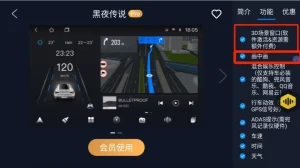
If your system doesn’t support triple-window display, go to Baibian Theme → Feature Filter and check [3D Scene Window] to view all themes that support D3Dview floating windows.

▲ View supported features in the theme details
After selecting and downloading a theme, the D3Dview window appears automatically. You can close it using the bottom-right button.

▲ Example of D3D floating window on desktop
Triple-Window Display
Only TS10, TS18, and T5 platforms support picture-in-picture D3Dview. In Baibian Theme, check [Triple Display] to view compatible themes.

▲ Filter themes supporting triple-window mode
After downloading, long press the window icon to switch layouts.

▲ Long-press to switch window configurations
Display 3D + Map Simultaneously
Some triple display themes support simultaneous display of D3Dview and your map application. Select themes with [3D Scene Window] for this effect.

▲ Simultaneous 3D + map window view
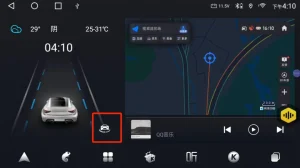
Click the toggle icon to activate the D3Dview overlay.
▲ Activate or deactivate the floating view
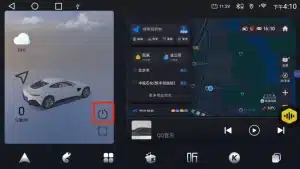
Click the power icon to turn it off.
▲ Exit the D3D overlay window
Switch from CheYing to D3Dview
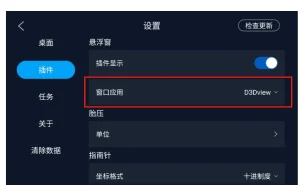
If you’ve previously used CheYing, scan the QR code below or contact our support to migrate your license. To switch apps manually, go to Baibian Theme → Plugin Settings → Window App.
▲ Change from CheYing to D3Dview in settings
Enable Auto-Start
To auto-start D3Dview, go to Baibian Theme → Tasks and add a new task.
▲ Set D3D to launch automatically on boot
This feature is both fun and practical! Just search D3D in the Chebizhuang Market to download. Platforms like T7, TS8, and T3 are not supported due to hardware limitations.

▲ Download D3D from the official market

▲ Final display overview combining all functions